Available to
Subscription to HG Insights’ Market Analyzer module with Credits required
Enrich your Hubspot Companies with HG firmographics and technology installs to help target accounts, refine messaging, and add additional context for both your Sales and Marketing teams to use throughout HubSpot.
The HubSpot CRM Enrichment integration is compatible with any HubSpot plans.
Object: The HubSpot CRM integration works only on the Company object in HubSpot.
Properties management:
The HG app manages the creation and deletion of any properties needed to operate the integration based on your configuration.
There is no need for you to manually create any properties to work with this integration.
For every product you select, we'll create 4 related properties. The product name will be appended to the beginning of the property name for each of the following:
Refresh Frequency:
When you have the Auto-sync setting turned ON, the integration enriches new records nightly at 5 AM UTC / 10 PM PST and refreshes existing records monthly.
At any time you can click on Sync HubSpot for a manual sync.
Matching HG Companies with your HubSpot Companies
To match your records with HG companies, HG read the following standard HubSpot properties that are already available on your Company object
Company Domain Name
Company Name
Country/Region
These properties are only referenced in matching. HG will never change or overwrite these properties.
The following properties will be created on the HubSpot Company object.
Field name | Description | Type |
|---|---|---|
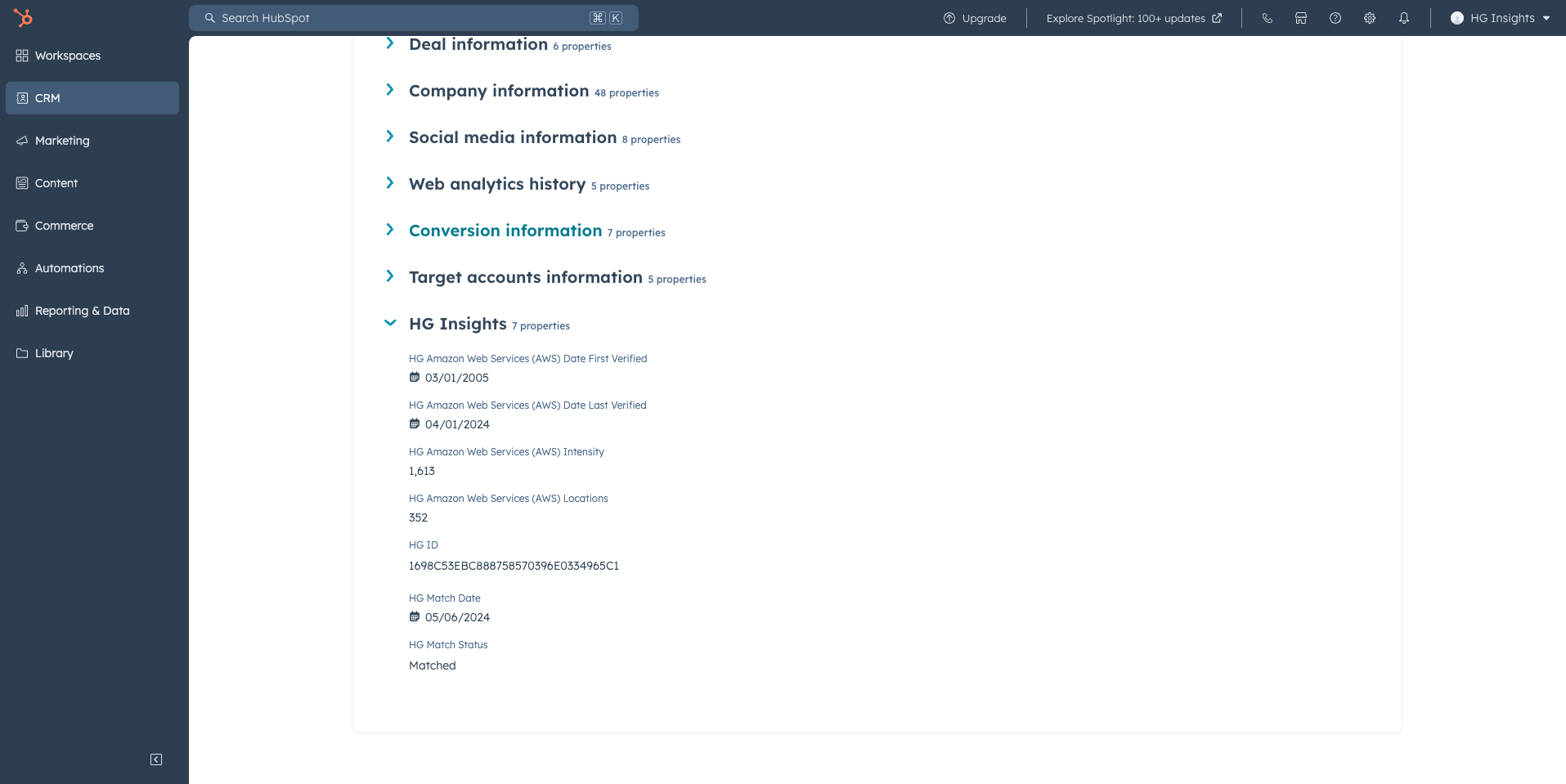
HG ID | HG's unique identifier for our companies | Single-line Text |
HG Match Status | Status of record, can be Matched, Not Matched or null | Single-line Text |
HG Match Date | Date of initial match between HG and HubSpot | Date Picker |
Field Name | Example Field Name | Description | Type |
HG Company Name | Ford Motor Company | Date of most recent install signal | Single-line text |
HG URL | ford.com | The URL of the HG company. | Single-line text |
HG City | Dearborn | The city of the HG company. | Single-line text |
HG State | MI | The state of the HG company. | Single-line text |
HG Country | United States of America (the) | The country of the HG company. | Single-line text |
HG Employee Count | 177,000 | Number indicating the total number of employees at the company. | Number |
HG Revenue Count | 176,191,000,000 | Currency indicating the annual sales of the company. | Number |
HG Industry | Manufacturing | HG industry of the company. | Single-line text |
.png?sv=2026-02-06&spr=https&st=2026-10-17T03%3A08%3A13Z&se=2026-10-17T03%3A21%3A13Z&sr=c&sp=r&sig=XQfBAvxOdez3hA7sDzeNIQbYHeFFAIDq1ln6seQFAx4%3D)
For every product you select, we'll create 4 related properties. The product name will be appended to the beginning of the property name for each of the following:
Field Name | Example Field Name | Description | Type |
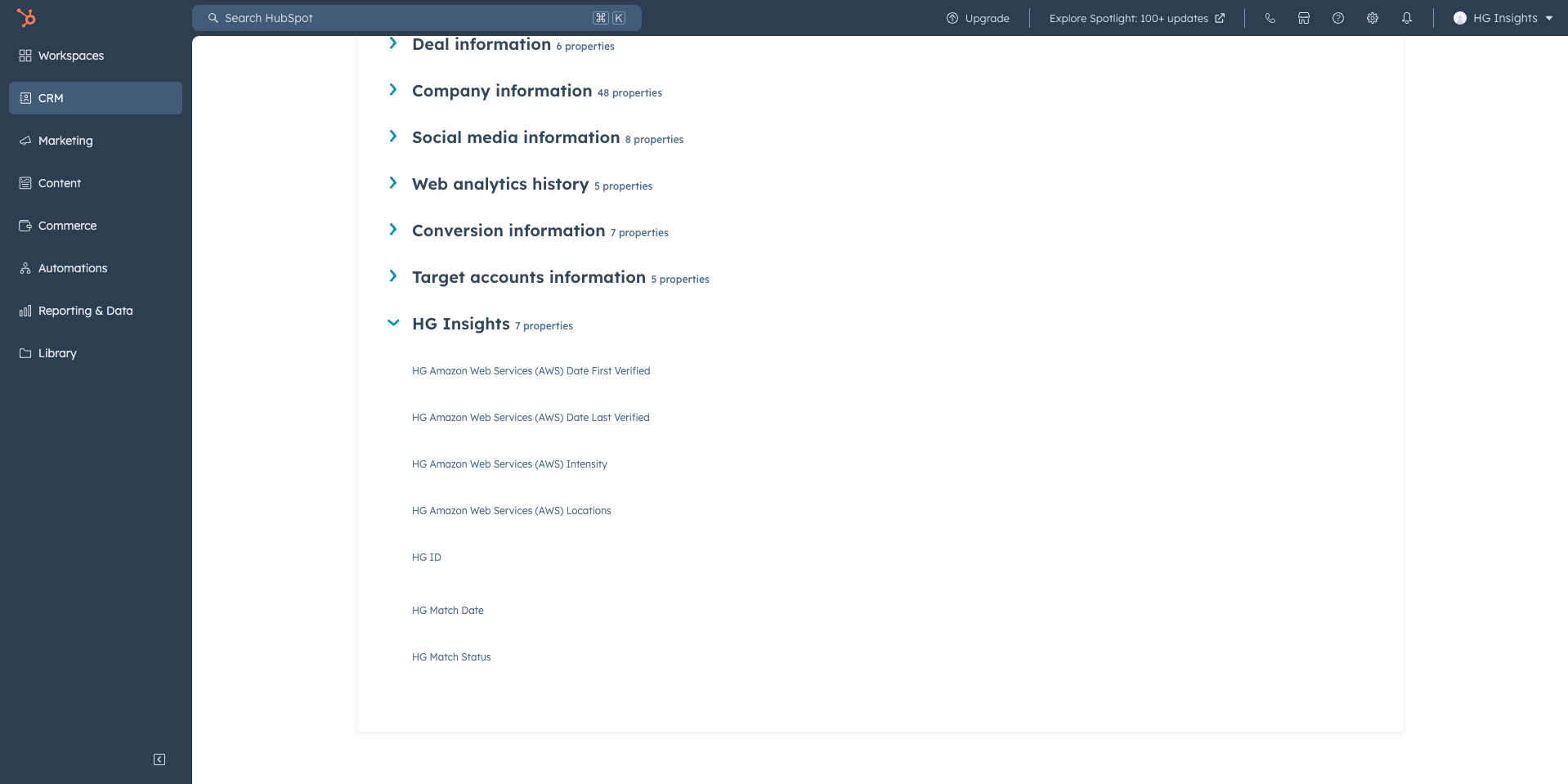
HG {product name} Date Last Verified | HG Amazon Web Services (AWS) Date Last Verified | Date of most recent install signal | Date Picker |
HG {product name} Date First Verified | HG Amazon Web Services (AWS) Date Last Verified | Date of most recent install signal | Date Picker |
HG {product name} Intensity | HG Amazon Web Services (AWS) Date Last Verified | An aggregated view of the Country and Location intensity | Number |
HG {product name} Locations | HG Amazon Web Services (AWS) Date Last Verified | Date of most recent install signal | Number |
.png?sv=2026-02-06&spr=https&st=2026-10-17T03%3A08%3A13Z&se=2026-10-17T03%3A21%3A13Z&sr=c&sp=r&sig=XQfBAvxOdez3hA7sDzeNIQbYHeFFAIDq1ln6seQFAx4%3D)
The HubSpot CRM Enrichment integration requires the following read/write scopes for the integration user.
Minimum Permissions:
Companies Object READ and WRITE
Contacts Object READ and WRITE
CRM EXPORT
IMPORT
Translated to Required Scopes:
crm.export
crm.import
crm.objects.contacts.write
crm.schemas.companies.write
crm.schemas.contacts.write
oauth
HubSpot requires a super admin user to install the application.
We recommend using a generic integration user with minimum permissions, not a personal account to connect your HubSpot to HG.
Log in HG Admin Hub
Go to Integrations > Hubspot
In CRM enrichment section click Enable.png?sv=2026-02-06&spr=https&st=2026-10-17T03%3A08%3A13Z&se=2026-10-17T03%3A21%3A13Z&sr=c&sp=r&sig=XQfBAvxOdez3hA7sDzeNIQbYHeFFAIDq1ln6seQFAx4%3D)
Select CRM Enrichment (HG -> HubSpot) and click Continue
Select Production then Authorize with Hubspot
A browser pop up opens to Oauth with your Hubspot account.
Select the account to connect and click Choose Account
Check the box to confirm permissions and click Connect App
Back in HG Admin Hub, configure settings
Auto-sync: if you want the enrichment to run continuously with new records enriched daily
HG Data enrichment: if you want to enrich with Firmographics and/or Products Installs (you’ll be able to select which products at the next step
Localized Installation: .png?sv=2026-02-06&spr=https&st=2026-10-17T03%3A08%3A13Z&se=2026-10-17T03%3A21%3A13Z&sr=c&sp=r&sig=XQfBAvxOdez3hA7sDzeNIQbYHeFFAIDq1ln6seQFAx4%3D)
Click Start Matching
Then Confirm & Complete setup
In the next step, you'll land on the HubSpot integration page, scroll down to the section What gets enriched and click Edit Configuration
.png?sv=2026-02-06&spr=https&st=2026-10-17T03%3A08%3A13Z&se=2026-10-17T03%3A21%3A13Z&sr=c&sp=r&sig=XQfBAvxOdez3hA7sDzeNIQbYHeFFAIDq1ln6seQFAx4%3D)
Click on the section Filter by Products and select the products you’d like to track..png?sv=2026-02-06&spr=https&st=2026-10-17T03%3A08%3A13Z&se=2026-10-17T03%3A21%3A13Z&sr=c&sp=r&sig=XQfBAvxOdez3hA7sDzeNIQbYHeFFAIDq1ln6seQFAx4%3D)
When you’re done click Save changes
When you are ready, click on Sync Hubspot, a modal opens showing a credit estimate before you start the sync (you must have at least one product selected). .png?sv=2026-02-06&spr=https&st=2026-10-17T03%3A08%3A13Z&se=2026-10-17T03%3A21%3A13Z&sr=c&sp=r&sig=XQfBAvxOdez3hA7sDzeNIQbYHeFFAIDq1ln6seQFAx4%3D)
This initial sync will create HG properties dynamically on the Company object. The number of properties created will depend on the number of products you select.
You can find the HG properties in Hubspot by selecting View all properties on a Company and viewing the HG section. These can be freely placed in cards, used in reporting, or used in automations.
Yes. You can connect a Sandbox first.